How to Get Job Alerts on Any Company's Careers Page
By Emily Fenton
Updated November 4, 2026

TL;DR: Paste a company's careers page URL into Visualping, describe the roles you want in the "Alert me when" box, choose how often to check, and get an email when a matching job appears. The free plan watches 5 pages, checked as often as every 60 minutes. Job seekers in the U.S. and Canada can apply for Job Seeker Access to watch 25 career pages, checked as often as every 5 minutes, free for 6 months.
Job Seeker Access: 25 career pages, free for 6 months If you live in the U.S. or Canada and are looking for a job for yourself, you can apply for Job Seeker Access. Each approved account gets:
- Up to 25 career pages
- 1,000 checks a month
- Checks as often as every 5 minutes
- AI summaries in your alerts
Access is free for 6 months, starting the day your account is upgraded. Create a free Visualping account, then apply for Job Seeker Access with the same email. Visualping reviews each application and emails you when access is on. The free plan works without Job Seeker Access, so you can start setting up alerts while you wait.
Job boards cover only some companies, and their alerts often arrive after a role has been live for a while. If you already know where you want to work, the most direct source is the company's own careers page.
Visualping checks the careers pages you choose on a schedule. When a new role appears, you get an email with a short AI summary of what changed, a before and after view of the page, and an Important flag when the change matches the role you described. You check one inbox instead of ten careers pages.
This guide shows how to set up your first job alert, add many companies at once, and get more pages with Job Seeker Access.
How to set up job alerts with Visualping
You need an email address and the link to a careers page. Setup takes a couple of minutes.
Step 1: Create a free account
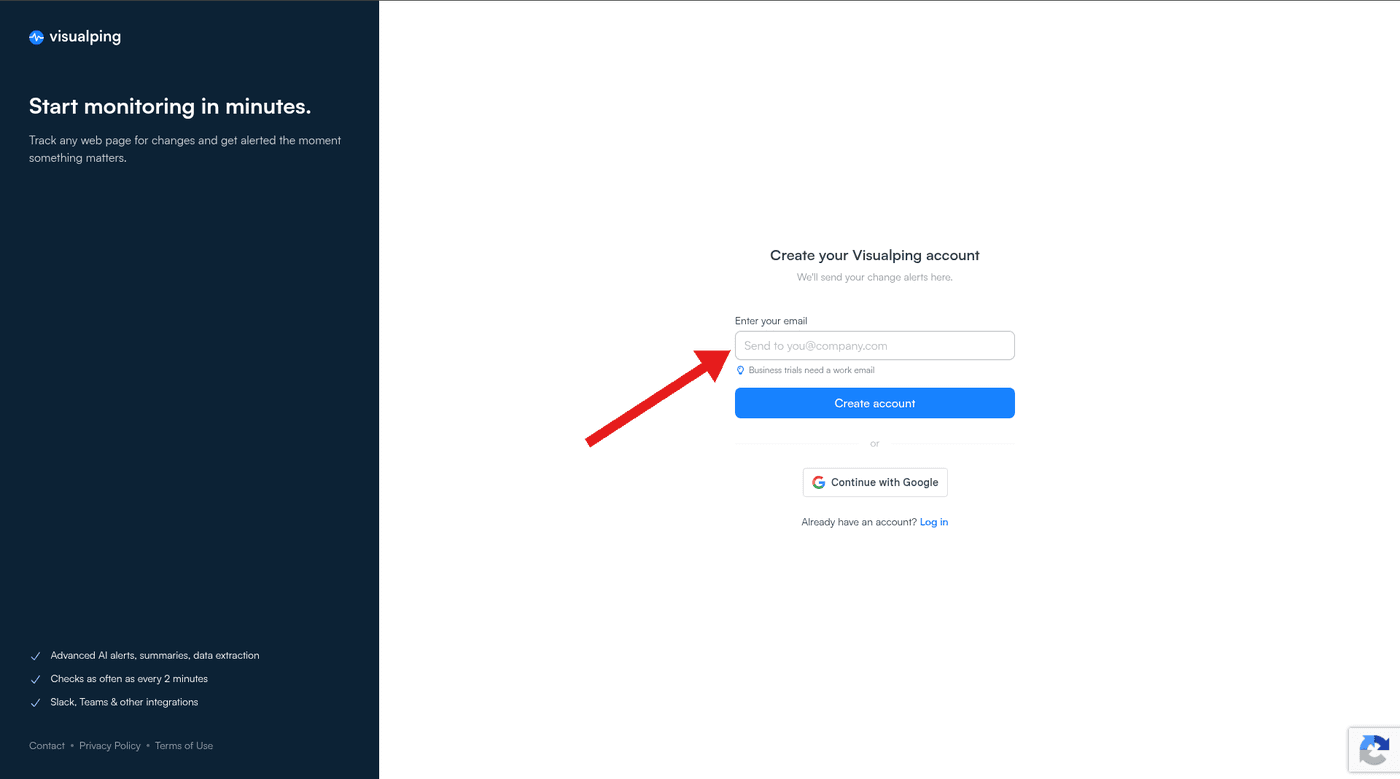
Go to the Visualping sign-up page and create an account with your email or with Google. A personal email is fine. If Visualping asks how you will use it, choose the personal option. You will need this account to apply for Job Seeker Access.
Step 2: Paste the careers page URL
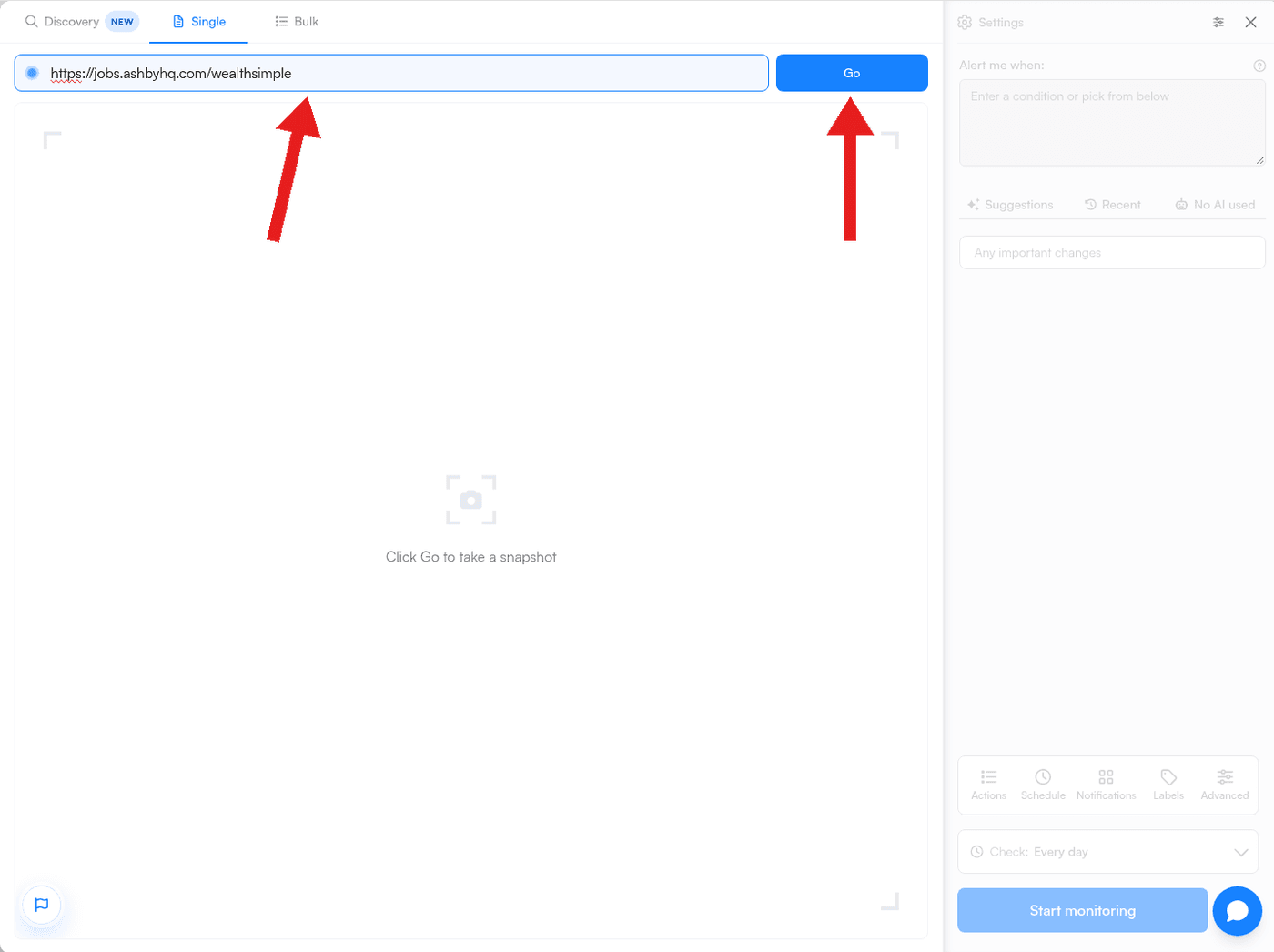
On your dashboard, click Start monitoring. On the Single tab, paste the careers page link and click Go. Use the page that lists the jobs, for example https://jobs.ashbyhq.com/wealthsimple. If the careers page has filters for team or location, apply them first and copy the filtered URL, so Visualping watches only the roles you want.
Step 3: Check the preview and pick the job area (optional)
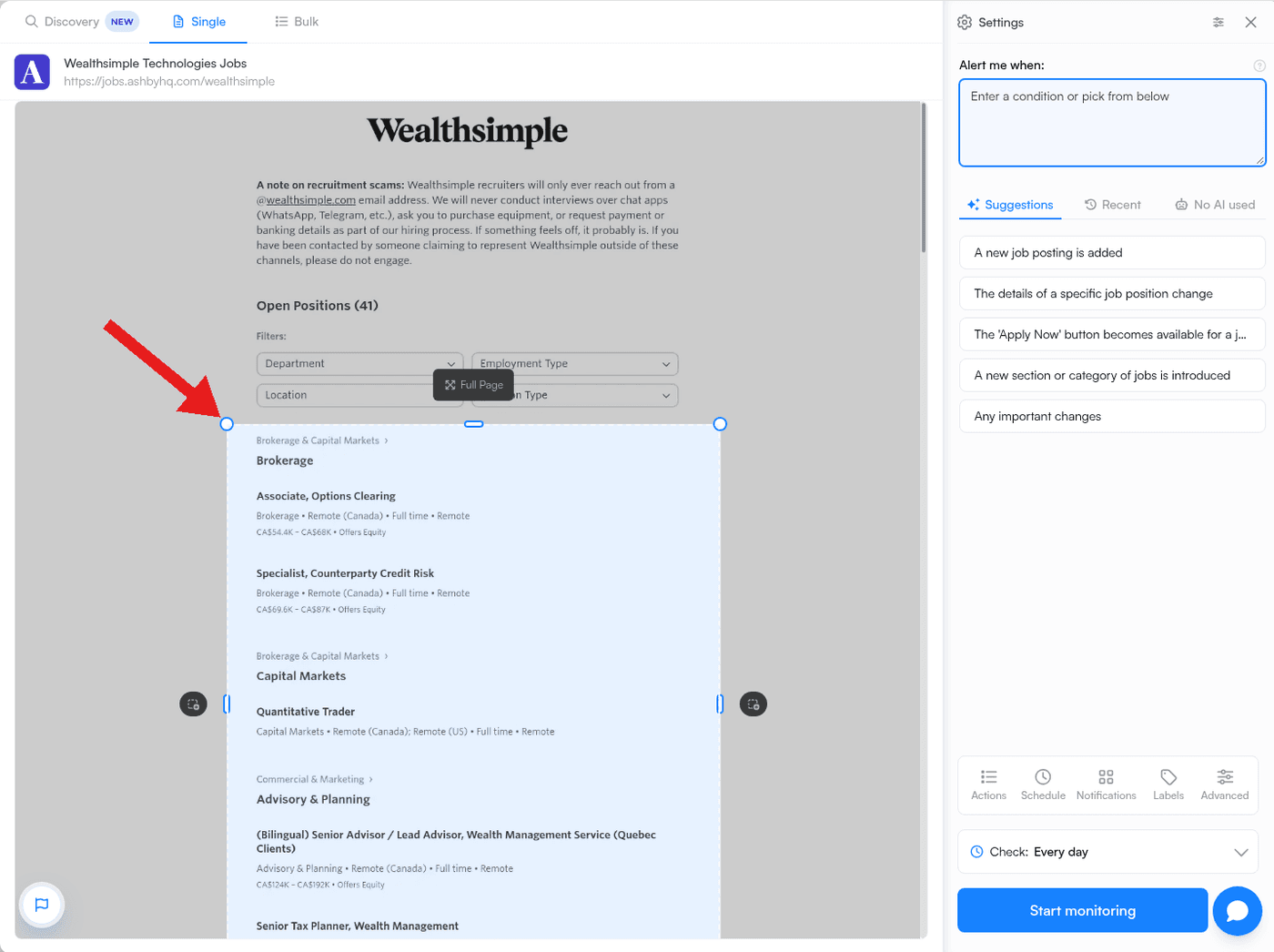
Visualping loads a picture of the page. Make sure you can see the job list. To ignore the rest of the page, drag a box over the job list. To watch the whole page again, click the Full Page button on the selection box. If parts of the page are missing, add a wait time under the Advanced settings in the Settings panel.
Step 4: Tell Visualping what to alert you about
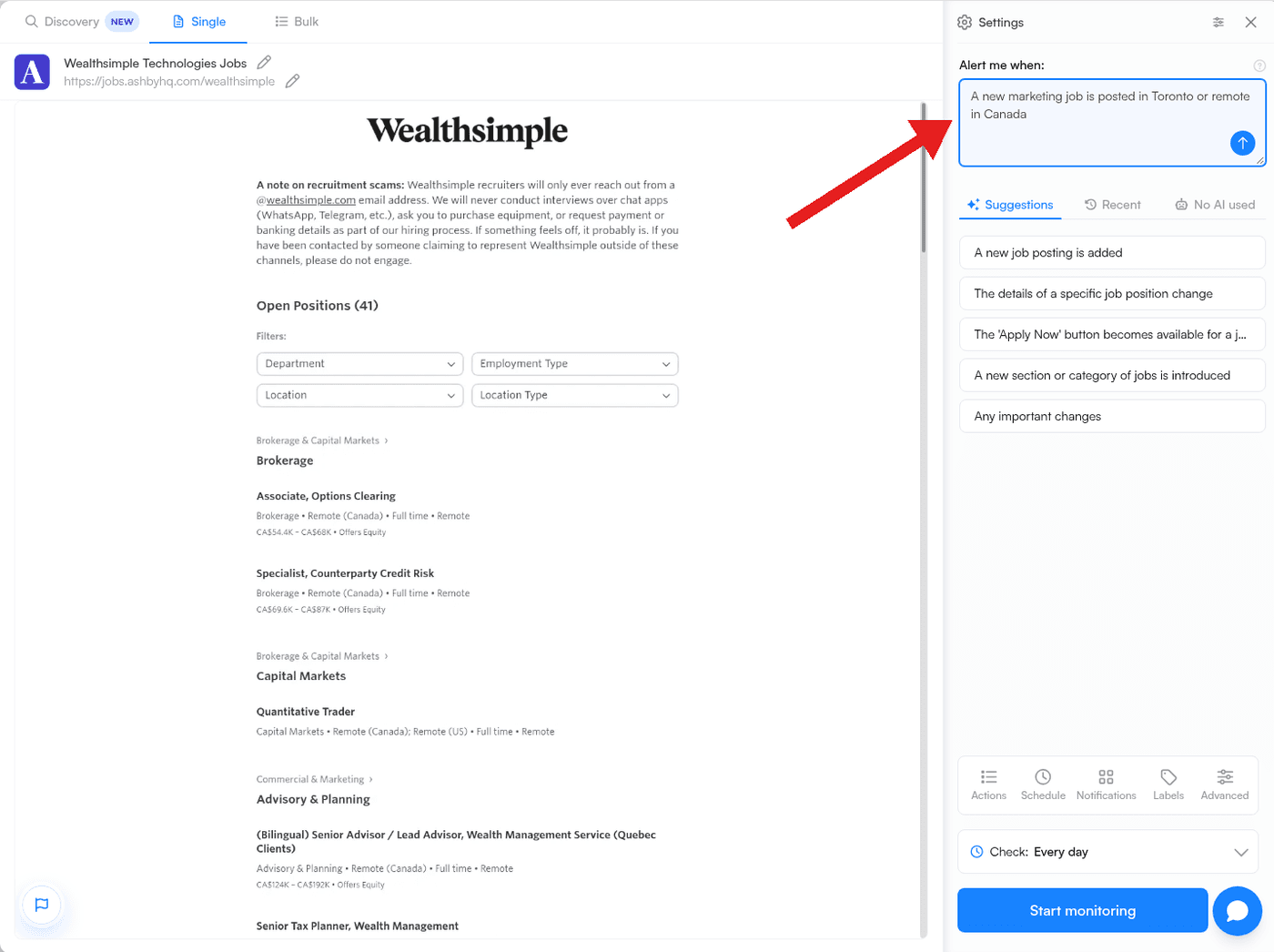
In the Alert me when: box, describe the jobs you want in plain words, for example "A new marketing job is posted in Toronto or remote in Canada." Then click the arrow button. You can also click a suggestion such as "A new job posting is added." Your condition appears as a short summary with an Edit button.
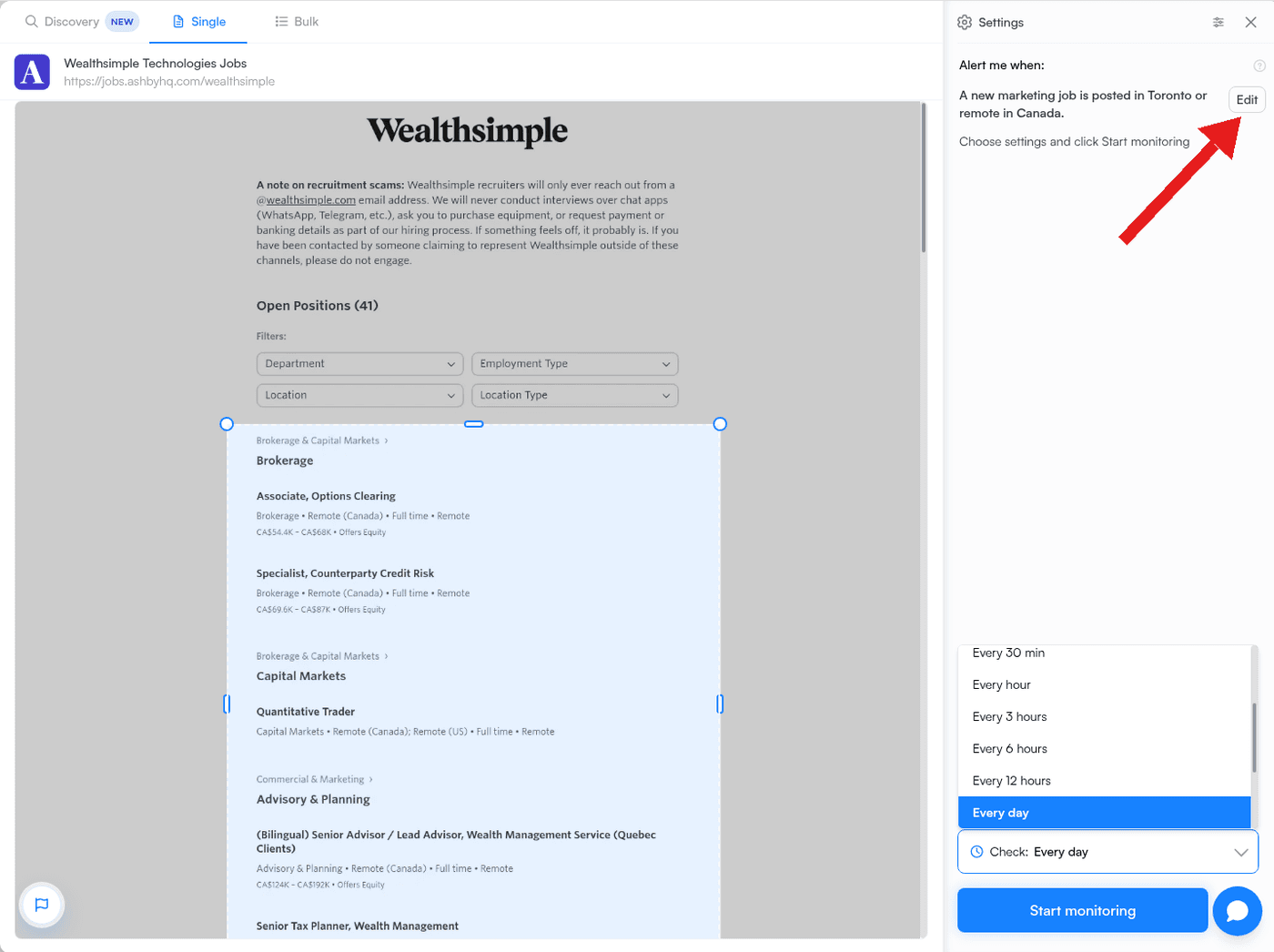
Step 5: Choose how often to check
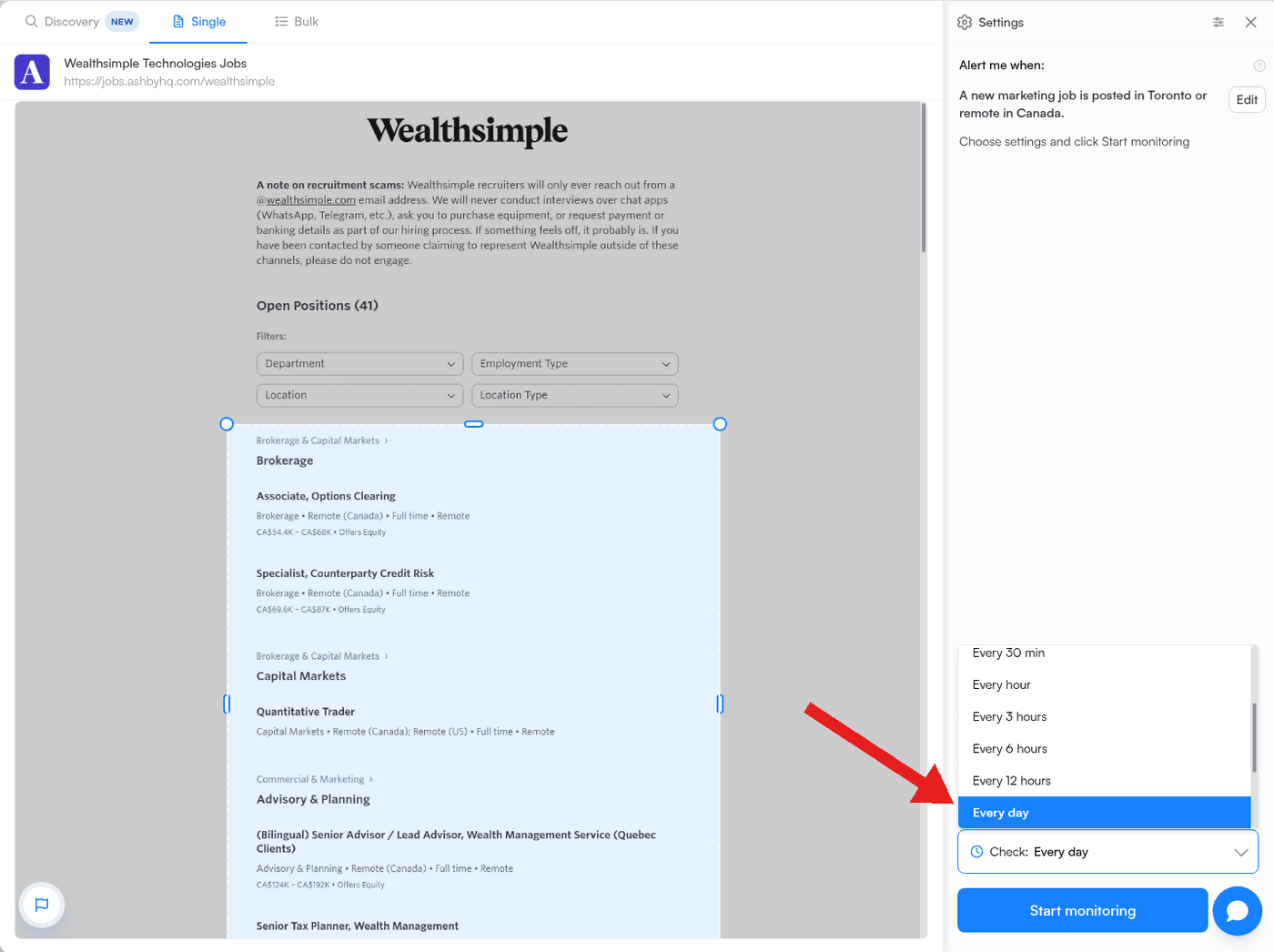
Click Check and pick a frequency. Every day is enough for most job searches. The free plan checks as often as every 60 minutes. Job Seeker Access and the Personal 5K plan check as often as every 5 minutes. Visualping finds a new job at the next scheduled check, so a faster schedule means earlier alerts.
Step 6: Start monitoring
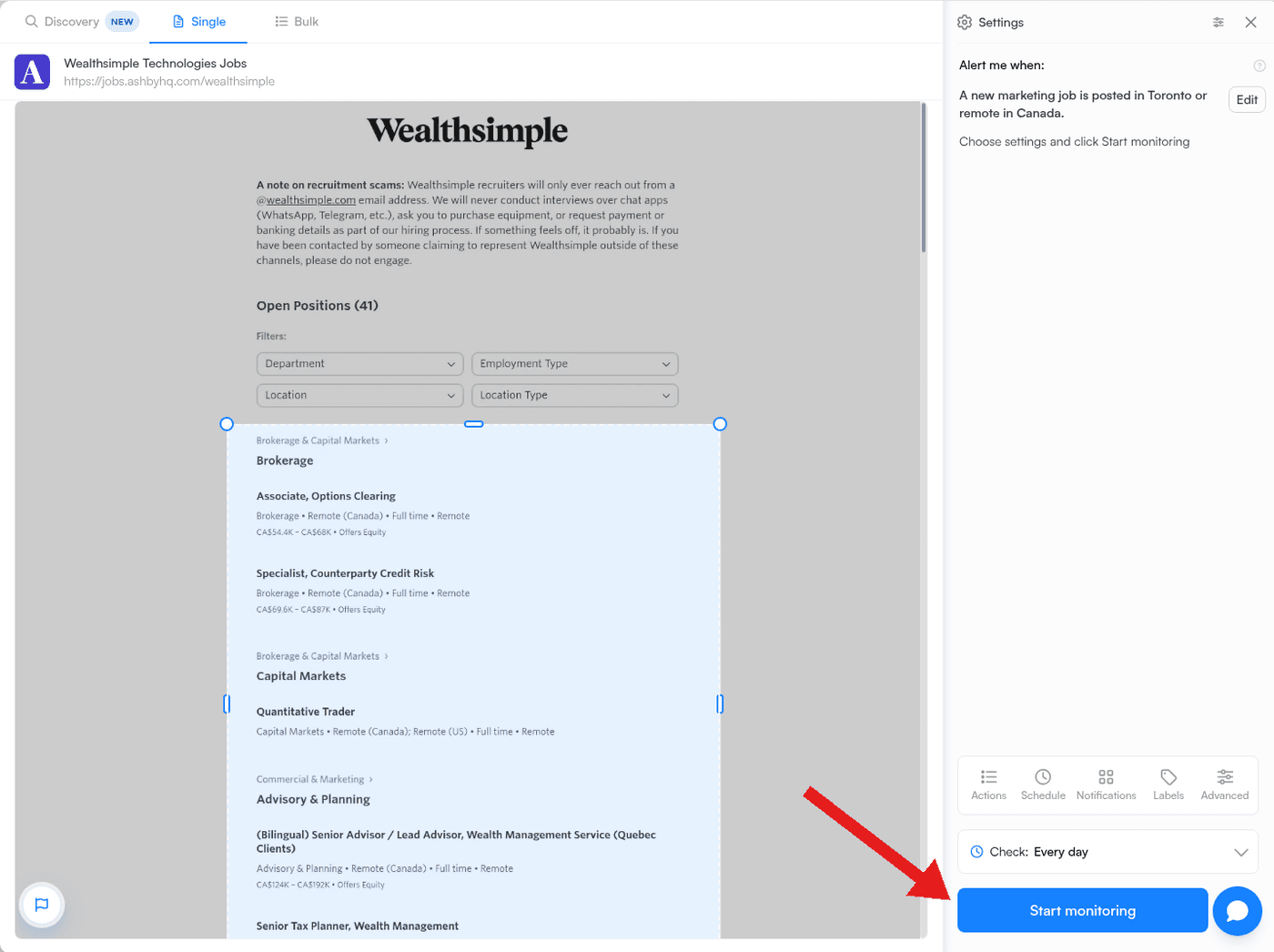
Click Start monitoring. Email alerts are on by default. To confirm, open the monitor, click the gear icon, then go to Notifications > Email and make sure email notifications are switched on.
Watch many companies at once
- Discovery: Click the arrow next to Start monitoring and choose Discovery. Describe the pages you want, for example "Careers pages listing marketing jobs at Canadian fintech companies." Review the suggested pages, untick any that are not jobs pages, add your "Alert me when" condition, and start monitoring them together.
- Bulk: Choose the Bulk tab and paste one careers page URL per row, with the company name as the title. Your "Alert me when" condition applies to every page in the batch.
What a job alert looks like
Each email names the page, summarizes the change (for example, "A Product Marketing Manager role was added in New York"), shows the before and after versions, and links to the page. Alerts that match your condition are flagged Important, so you can open those first.
Real-world example: AI Startup Jobs
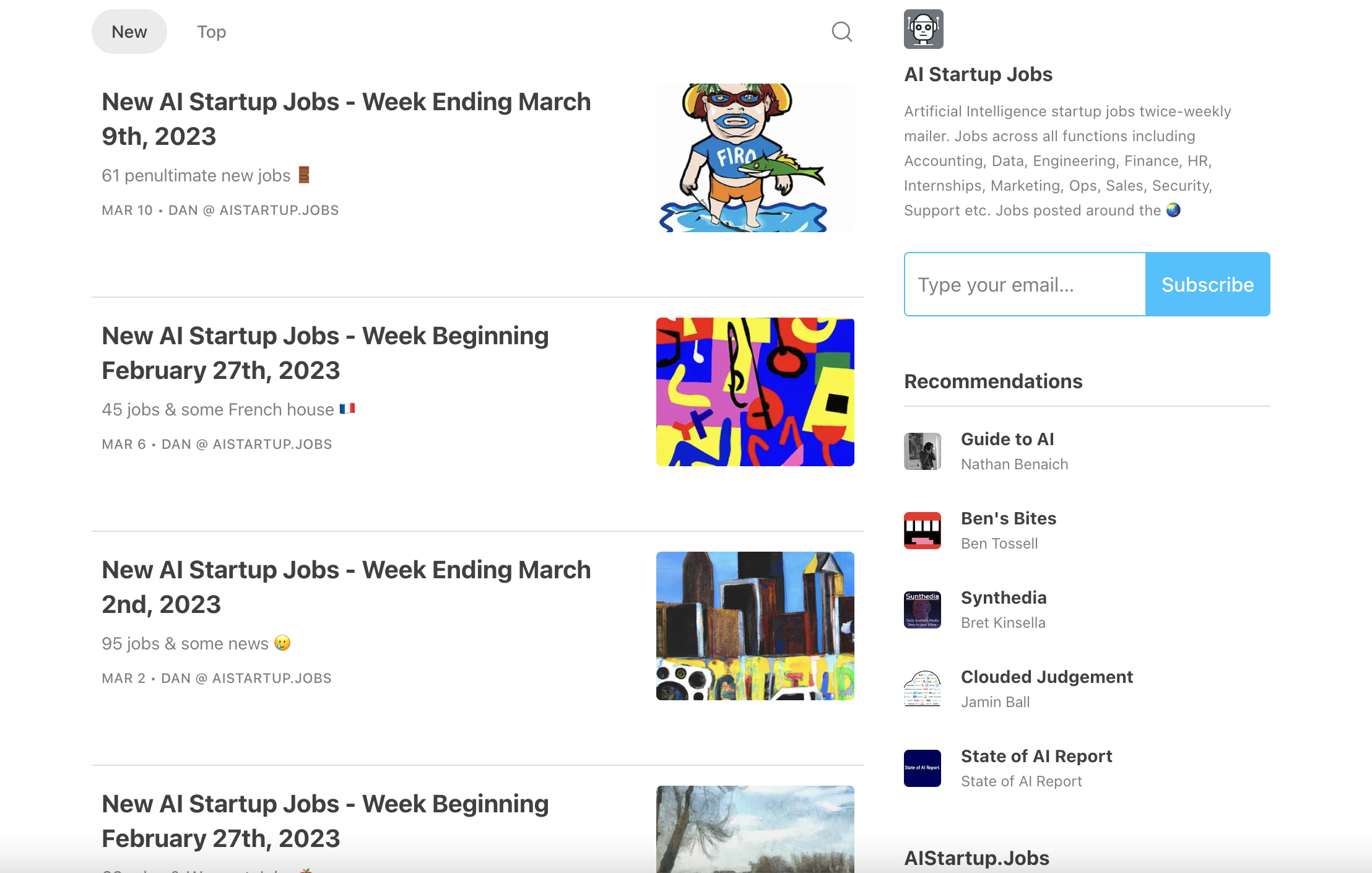
AI Startup Jobs (https://www.aistartupjobs.com/) uses Visualping to track over 500 company career pages daily. When Visualping detects a change, the update goes straight to owner Dan's Gmail. Every Monday and Thursday, he publishes a newsletter with the latest roles and industry trends.
"If I scanned all these job boards and clicked them hundreds of times a day, this would be very inefficient."
Dan also noted the value for individual job seekers: "I feel it's a great use case for people looking for jobs at specific companies. Especially right now, with how the tech industry's been."
Pricing
| Plan | Price | Pages | Monthly checks | Fastest check |
|---|---|---|---|---|
| Free | $0 | 5 | 150 | Every 60 min |
| Job Seeker Access (U.S. and Canada, by application) | Free for 6 months | 25 | 1,000 | Every 5 min |
| Personal 1K | $14/mo, or $10/mo billed annually | 10 | 1,000 | Every 15 min |
| Personal 5K | $35/mo, or $25/mo billed annually | 20 | 5,000 | Every 5 min |
| Personal 10K | $70/mo, or $50/mo billed annually | 40 | 10,000 | Every 2 min |
See https://visualping.io/pricing for all plans, including Business plans for teams.
Frequently asked questions
What is Job Seeker Access and who can apply? Job Seeker Access gives people in the U.S. or Canada who are looking for a job for themselves 25 career pages, 1,000 checks a month, and checks as often as every 5 minutes, free for 6 months. Create a free account, then apply for Job Seeker Access with the same email.
Can I get job alerts for a company that doesn't offer them? Yes. Visualping watches any publicly accessible web page, including company careers pages and hosted job boards.
How fast will I hear about a new job? Visualping finds a new job at the next scheduled check. The free plan checks as often as every 60 minutes. Job Seeker Access and the Personal 5K plan check as often as every 5 minutes.
Can I get alerts only for certain roles? Yes. Describe the roles in the "Alert me when" box, for example "A new product marketing role is posted in New York or remote in the U.S." Alerts that match are flagged Important. You can also use a filtered careers page URL or select only the job list area.
How many companies can I watch for free? The free plan covers 5 pages. Job Seeker Access covers 25 career pages, free for 6 months, for job seekers in the U.S. and Canada.
How do I add many careers pages at once? Use the Discovery tab to find careers pages from a plain-language description, or the Bulk tab to paste a list of URLs.
What does a job alert email include? An AI summary of the change, the before and after versions of the page, an Important flag when the change matches your condition, and a link to the page.
Related reading
- Apply for Job Seeker Access
- How to Monitor a Web Page With AI: https://visualping.io/blog/how-to-monitor-web-page-with-ai
- How to create a basic monitor: https://help.visualping.io/en/articles/4440705
- How to Monitor Website Changes: https://visualping.io/blog/how-to-monitor-website-changes
- Visualping pricing: https://visualping.io/pricing
Want to monitor web pages for changes?
Sign up with Visualping to get notified of alerts from anywhere online, so you can save time, while staying in the know.
Emily Fenton
Emily was the Product Marketing Manager at Visualping. She has a degree in English Literature and a Masters in Management.
More articles by Emily Fenton