How to Monitor Website Changes and Get Automatic Alerts
Updated October 28, 2026
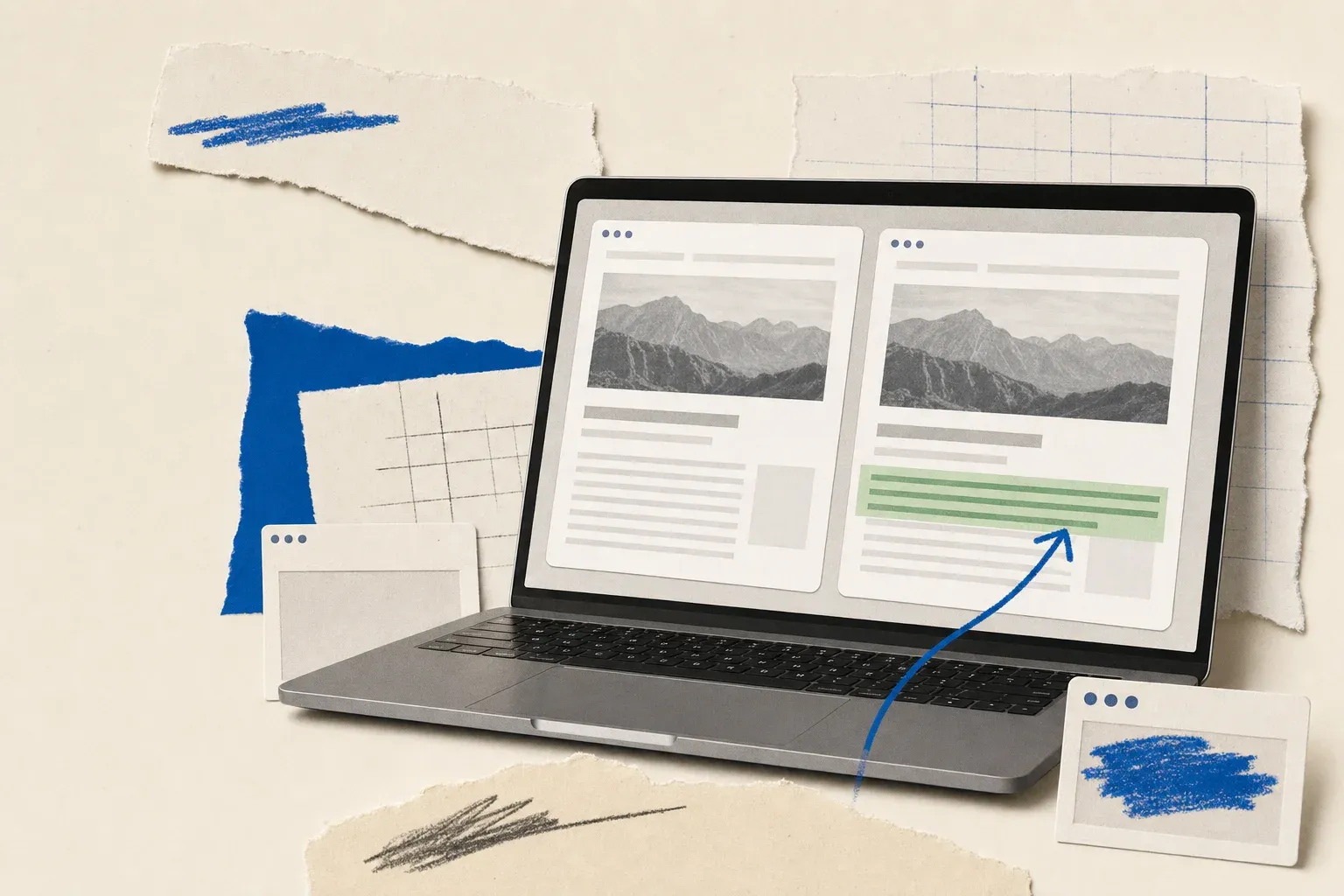
TL;DR You can monitor website changes automatically using a page monitoring agent (also known as a website monitoring tool). Paste in a URL, set what kind of change to watch for, and choose how often to check. Visualping checks the page on a schedule. Each detected change has an AI summary, an Important flag, and a before-and-after comparison. Notifications follow your monitor settings.
Using page monitoring agents beats manually refreshing pages all day. Whether you’re waiting for concert tickets to drop, tracking competitor pricing shifts, or watching a regulatory filing for updates, tools like Visualping can check the pages for you.
What Is Website Change Monitoring?
Website change monitoring is the process of checking web pages for updates on a schedule. Those updates can include content changes, price shifts, new filings, or image changes. Visualping records detected changes and can notify you through enabled channels. Channels include email, webhooks, SMS, and native Slack and Microsoft Teams alerts, and which ones you can use depends on your plan. The API is available for programmatic use.
A check, a detected change, and a delivered notification are different events. Visualping compares captured page versions after successful checks; your criteria help classify detected changes, and notification settings control delivery. A missing notification alone cannot establish that the page stayed unchanged.
Why People Monitor Website Changes
People monitor websites for personal tasks such as restock alerts, price drops, and job postings, as well as business tasks such as competitor and regulatory monitoring.
Tracking competitor websites lets you review detected changes to their pricing, products, and messaging.
Examples of why people and businesses track website changes:
- Competitive Intelligence: Monitor competitor homepages, pricing pages, and product listings to review detected positioning shifts, feature launches, and pricing changes.
- Regulatory Compliance: Track changes to government filings, legislation, and regulatory body websites. Teams can review detected updates alongside their compliance processes.
- Software Updates: Watch for vendor patches, changelog entries, and new versions.
- Brand Protection: Monitor your own pages and pages that mention your brand, and review detected changes for possible website defacement.
- Job Hunting: Monitor career pages at target companies and review relevant new postings after a check detects them.
- Price Tracking: Watch supported retailer product pages, define a target price in your prompt, and enable notifications for important changes.
How to Monitor Website Changes in 3 Steps
- Enter the URL. Paste the web page address you want to track into a monitoring tool like Visualping.
- Set your alert criteria. Describe what matters in the "Alert me when" box (for example, "Alert me when the price drops below $50"). In AI Mode, you can also select an area to focus on.
- Choose your check frequency and notification method. Choose a cloud-check interval allowed by your plan and monthly check budget, then enable your notification channels. Choose whether to receive notifications only for changes flagged Important.
The tool then checks on your chosen schedule. Review its preview and detected changes, and adjust the criteria or page selection if needed.
Here are the setup steps in Visualping. The screenshots below show an earlier interface; current labels and layout may differ.
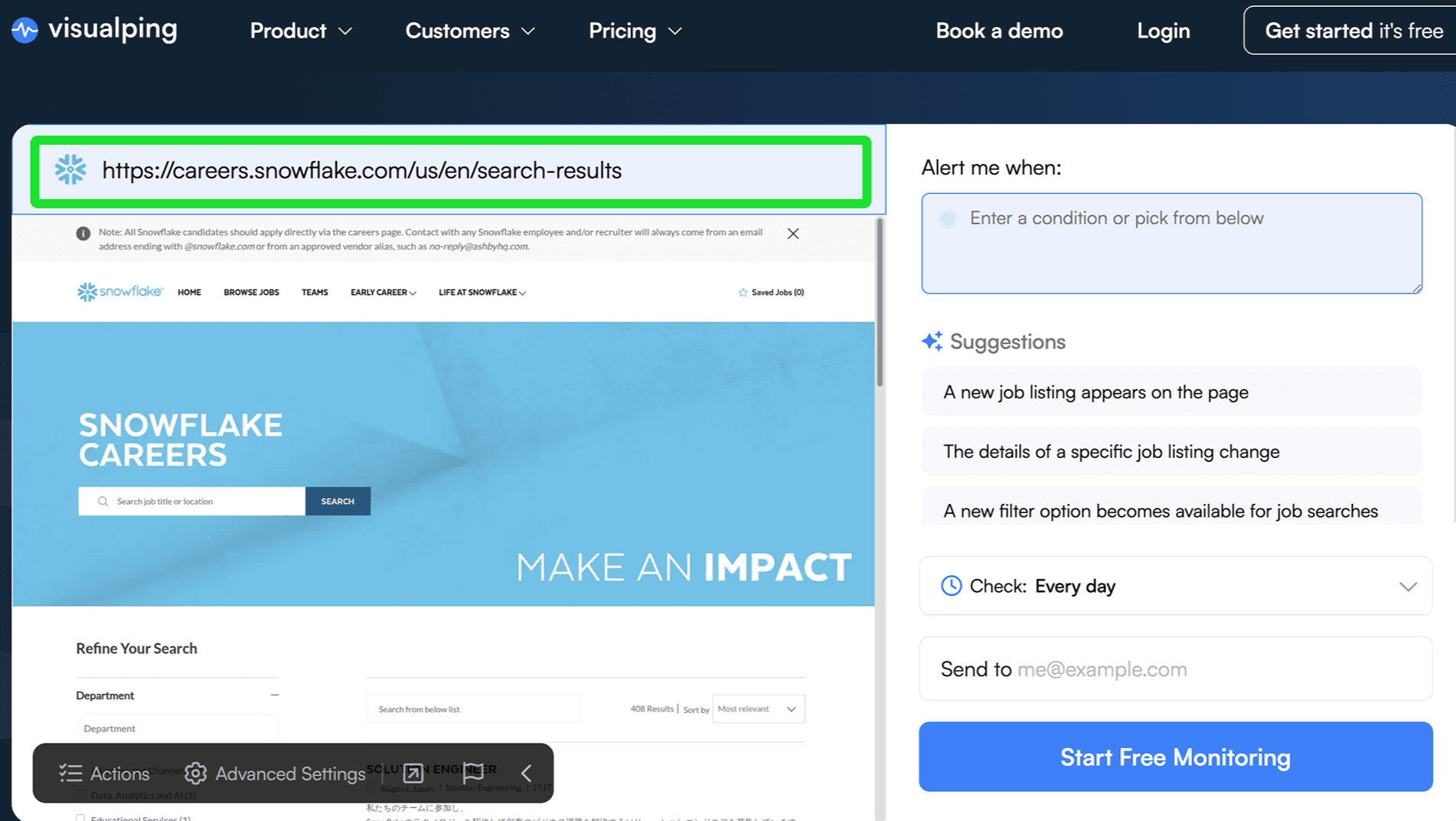
Step 1: Type the URL of the page you want to track
Create a Visualping account or sign in, then click "Start monitoring" on your dashboard. On the Single tab, paste the URL of the page you want to monitor and click "Go". Check that the preview contains the content you want to monitor.
Step 2: Set a criteria for the alert
In the "Alert me when" box, describe what should count as important. For example: "Alert me when the price drops below $50" or "Alert me when a new marketing job is posted." The prompt guides the binary Important classification. In Notifications, choose whether to receive only important-change notifications and enable the channels you want.
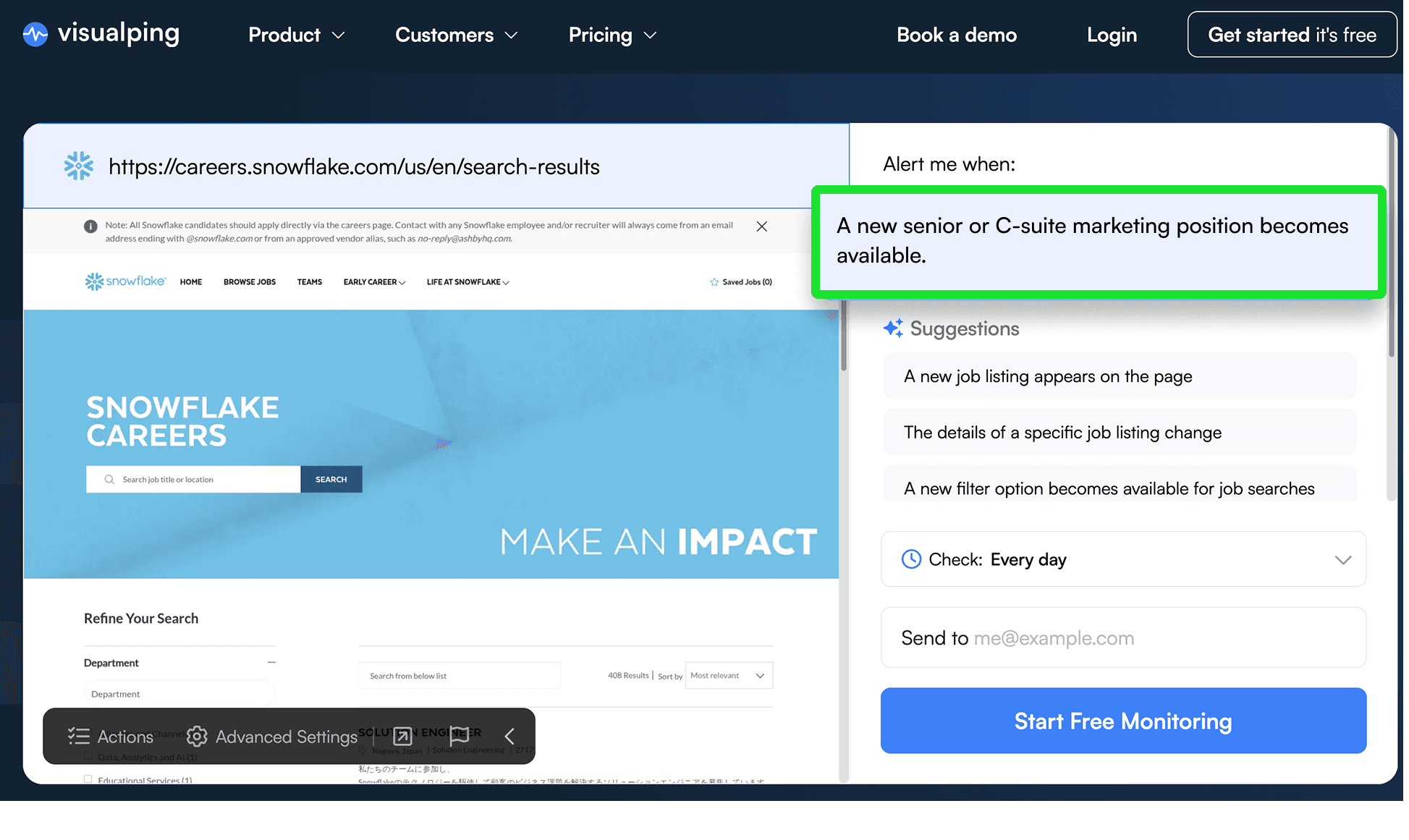
In AI Mode, drag a box over the preview to focus on one area. Changes elsewhere may still appear in the change list, while alerting focuses on the selected area. Describe the relevant content in your prompt as well. Select "Full page" to remove the area selection. Text mode compares the whole page and supports keyword alerts; area selection is unavailable.
Step 3: Set the check frequency and enable notifications
Choose a cloud-check frequency that fits your plan and budget. Every scheduled check counts toward your monthly check allowance, so the interval decides how far it goes: one page checked daily uses about 30 checks a month, and the same page checked hourly uses about 720. Start with the slowest schedule that still tells you in time, then tighten it once you see how often the page changes. Paid plans add more checks and faster intervals; the pricing page lists the current options.
Check that email notifications are enabled for the monitor, then click "Start monitoring".
How Do I Monitor a Website for Changes with ChatGPT or Claude?
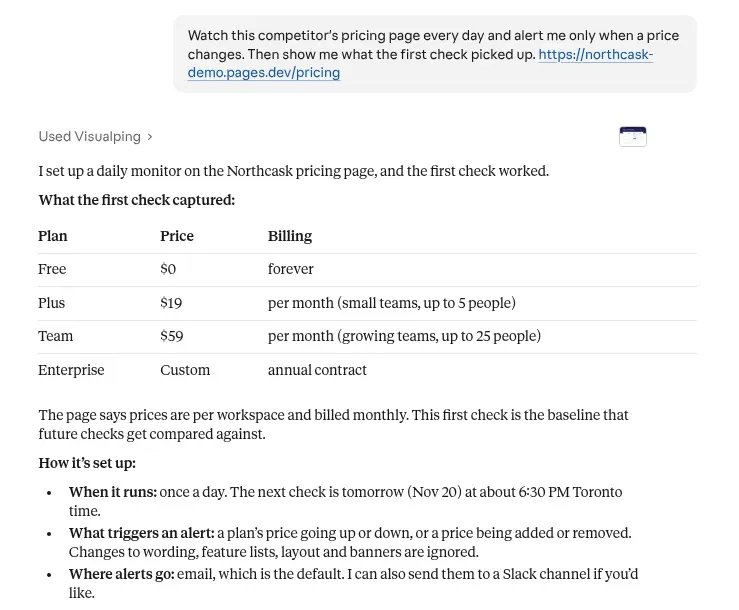
If you spend your day in Claude or ChatGPT, you can set up and manage monitors there instead of in the Visualping dashboard. Connect Visualping once, then ask in plain language. The assistant can create a monitor, tell you what changed, and adjust a monitor's schedule, alert condition or where its alerts go. It signs in as you, so it can only do what your Visualping role allows. Once a monitor exists, Visualping keeps checking the page from its own servers, whether or not the chat is still open.
Connect it
- Claude: Open the Visualping connector in Claude's directory, click Connect, sign in to Visualping and select Allow. The Claude setup page walks through it.
- ChatGPT: Open Visualping in ChatGPT's app directory, click Connect and sign in. In a chat, click + and pick Visualping to use it in that conversation.
- Claude Code, Codex, Cursor and other MCP clients: Add the Visualping MCP server at
https://visualping.io/mcp, then sign in when asked. The Codex setup steps show the exact commands.
Things to ask
- "Watch this competitor's pricing page every day and alert me only when a price changes. Then show me what the first check picked up."
- "What changed on my monitors this week? Start with the important ones."
- "Close the cookie banner before each check, and only check on weekdays during business hours."
The Visualping Dashboard
Your Visualping dashboard shows every page you monitor for website changes in one place. This is where you fine-tune things.
Getting too many emails because of shifting ads? Refine the Important criteria, choose only-important notifications, or focus on a smaller area in AI Mode. You can also adjust each monitor's check frequency within your plan and quota.
This example dashboard tracks corporate leadership, terms, and news pages. Menu labels in the current app may differ.
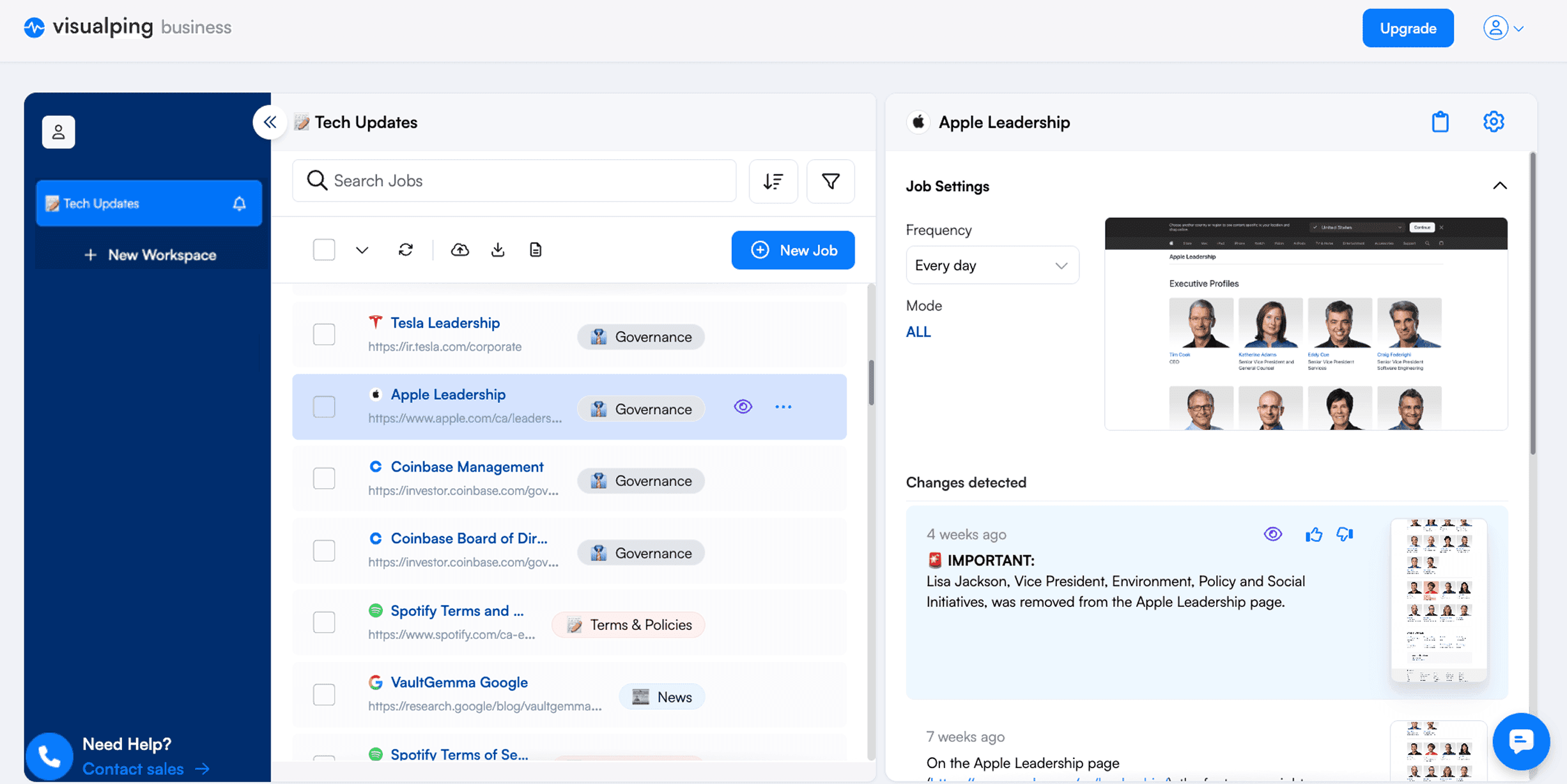
If you click into a specific monitor, you can see all the recent changes Visualping detected with timestamps.
The Visualping Alert Email
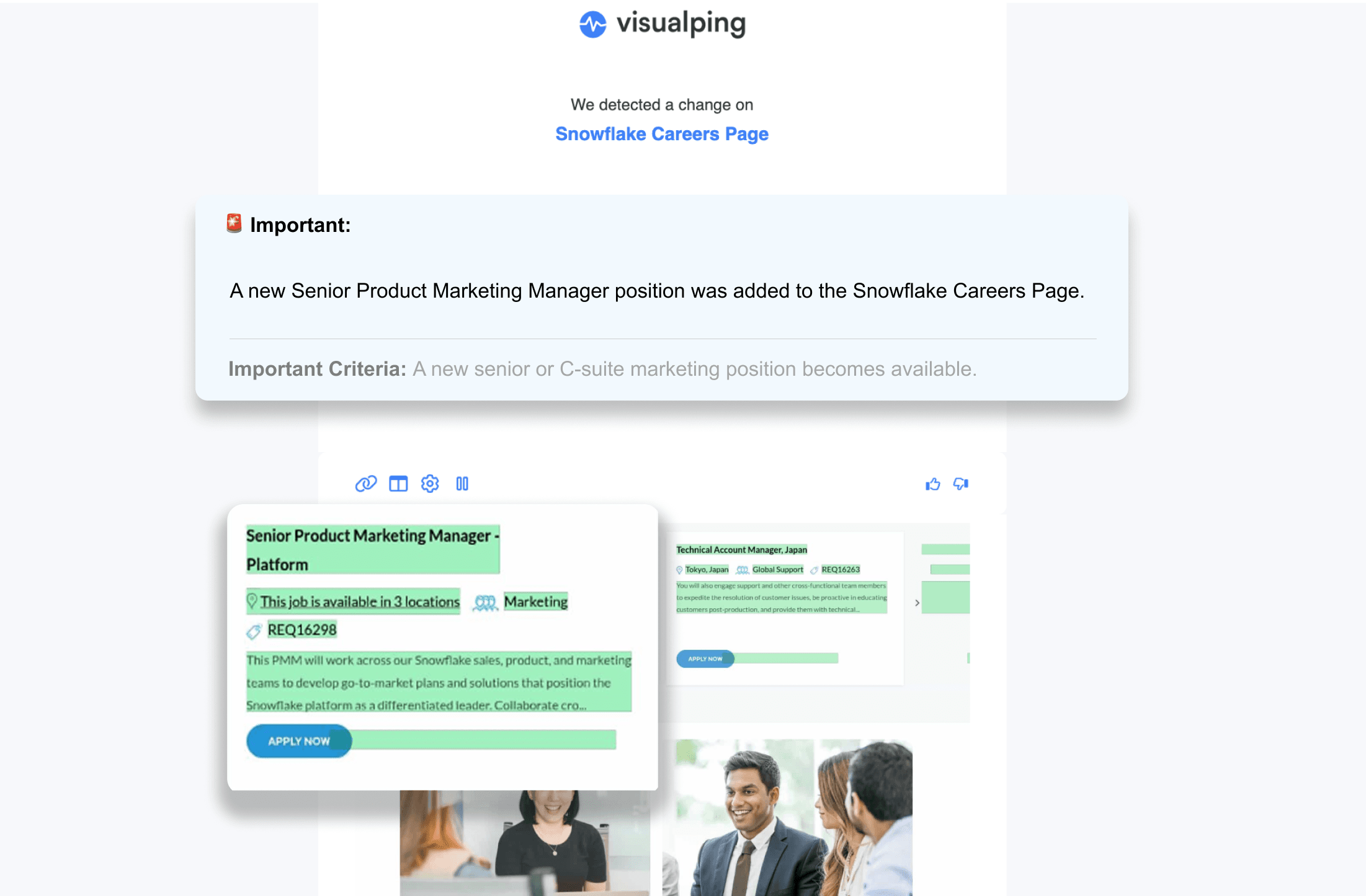
After a check detects a change, email delivery depends on your notification settings, including whether email is enabled and whether you selected only-important notifications. A change-alert email includes:
- A Visualping AI summary of what changed
- A binary Important flag to help you prioritize review
- Before and after screenshots with changes highlighted: green for additions, red for deletions
- Links to open the live page, view the change in your dashboard, adjust settings, or pause the alert
This example email shows an Important flag, its criteria, a summary, and highlighted additions on a job-posting page.
Actions and Advanced Settings for Website Monitoring
Some pages require interaction before content loads. Visualping's Actions panel lets you interact with a page during each check before the snapshot is taken, and our walkthrough for form-driven pages builds a full sequence.
- Click: Click a button before the snapshot is taken (e.g. a "Load more" button or a cookie consent popup).
- Type: Enter text on the page (e.g. login credentials or a search term).
- Block: Hide selected elements before capture, such as ads, video players, or rotating banners.
- Wait: Allow extra loading time before the next action or snapshot.
Check the preview after configuring actions and fix any warnings before saving. For page-specific loading or access problems, consult our Knowledge Base.
Visualping for Business
For teams, Visualping adds team collaboration, native Slack and Microsoft Teams alerts, and Visualping Reports. Each workspace has its own plan and cost. For larger programs, Visualping's enterprise options add Premium AI, custom monitoring volumes, and dedicated service.
When Website Change Monitoring Gets Tricky
Some situations require extra setup:
- Login-protected pages: For pages you are authorized to access, Visualping's cloud monitors can use Click and Type actions to log in before capture. Test the preview; complex authentication may require additional configuration.
- JavaScript-heavy single-page apps: Some sites load content dynamically after the initial page load. If your monitoring tool only reads the raw HTML, it may miss changes. Check that the required content appears in Visualping's preview, and use Wait or other Actions if it needs more time or interaction.
- Frequently rotating content: Pages with ad banners, news tickers, or personalized sections can trigger false alerts. Use the Block action to exclude those elements, or narrow your monitoring selection to the specific section you care about.
- Very large pages: Select the content you need to review and check that it appears in the captured preview. Very long pages can be truncated, and a redesigned layout can move content outside a saved area.
No page monitoring agent catches every edge case perfectly. If you're dealing with an unusual page, test the preview, actions, and alert criteria before choosing a schedule that fits your plan and check budget.
Want to do this without leaving ChatGPT? Connect Visualping in ChatGPT and sign in to your Visualping account. Select the app, then ask: Monitor [the URL you want to track]. Review the resulting monitor’s schedule and notification settings. Open Visualping in ChatGPT →
How to Choose a Page Monitoring Agent
What you're monitoring determines which tool fits. Visualping monitors content changes and includes AI summaries and Important flags. Its default AI Mode ignores style-only CSS changes. changedetection.io is an option you can self-host. When you weigh options, check how many pages the free plan covers, how often it checks, where alerts arrive, and whether you get a visual before-and-after; our roundup of free website change detection tools compares them.
Frequently Asked Questions
How do I monitor changes on a website?
Use a monitoring tool to enter the page URL, describe what counts as important, and choose an optional area in AI Mode. Set a cloud-check frequency that fits your plan and budget, then enable notifications. Visualping records detected changes with an AI summary, an Important flag, and before-and-after comparisons; delivery follows your notification settings.
Is Visualping a legitimate service?
Yes. Visualping is a website change monitoring platform used by 2 million people, including teams at 85% of the Fortune 500. Its Trust Center explains how data is encrypted, where it is stored and how login credentials are handled.
How can I check a website's change history?
A monitoring tool records changes from the time you start using it. Visualping keeps a limited change history; check your plan details before relying on an older capture. For older versions, the Wayback Machine may have archived captures, but coverage and completeness vary.
What is the Chrome extension to monitor website changes?
Visualping's Chrome extension lets you set up monitoring from a supported page in your browser. Cloud monitors keep running when your computer is off and use your plan's limits and notification channels. Local monitors require Chrome to remain open and send browser notifications; they can check as often as once a minute.
Working mainly in your browser? We also have a dedicated guide on how to monitor a website for changes in Chrome, covering the free extension route and when to move pages to the cloud.
How often should I check a website for changes?
Choose a check frequency based on how quickly you need to respond and how many checks your plan provides. For time-sensitive pages, use an interval your monthly budget can sustain. For slower updates, a daily schedule may be enough. Review the captured results and adjust the schedule as needed.
Can I monitor just part of a web page?
Yes. In Visualping's default AI Mode, you can select an area and describe the relevant changes in your prompt. Outside-area changes can remain visible in the change list. Only-important notification settings and enabled channels control what you receive. Text mode compares whole-page text and does not support area selection.
Is website monitoring free?
You can start for free. Visualping has a free plan with no credit card required, and many other page monitoring agents offer free options too. Free plans come with a monthly check allowance, so how often you check decides how far it goes: one page checked daily uses about 30 checks a month, and checked hourly about 720. Paid plans add more checks, more pages and faster check intervals, and the pricing page lists the current options.
What types of website changes can be detected?
Detection capabilities vary by tool and mode. Visualping's default AI Mode detects content changes such as text edits, image-content changes, price updates, and additions or removals of visible content. It ignores style-only CSS changes. Each detected change includes an Important flag and a Visualping AI summary. Text mode is available for whole-page text comparison and keyword alerts.
 Automated checks, with detected changes ready for your review
For more details on how to monitor website changes with specific settings and features, refer to our Knowledge Base.
Want to track the changes that matter to you?
Sign up with Visualping to monitor supported web pages and receive notifications according to your criteria and settings.
Eric Do Couto
Eric Do Couto is the Head of Marketing at Visualping. He leads content strategy, growth operations, and brand positioning for website change detection.
More articles by Eric Do Couto