How to Monitor a Website for Keywords (Step by Step)
By Anika Gupta
Updated November 18, 2026

Keyword monitoring is a scheduled check of a web page that alerts you when a specific word, phrase or number shows up on it or drops off it. In Visualping it takes three steps: add the page, say what to watch for, and pick how often to check.
New monitors start in AI Mode, where you describe the change in an "Alert me when" field (for example, "Alert me when this careers page posts a role in Toronto"). When you need exact matching, Text changes mode (listed under Legacy modes) takes a keyword list and alerts only when a listed word is added or deleted.
- Watching for a topic or idea, such as a new role in Toronto: follow the "Alert me when" steps.
- Watching for an exact word, number or pattern: set up an exact keyword list.
- Tracking search rankings or brand mentions: read keyword monitoring vs rank tracking.
- Still deciding: compare condition or keyword list, browse seven use cases or check the keyword alert FAQ.
How to set up keyword monitoring in Visualping
The steps below use AI Mode, the default for new monitors. If you need an exact keyword list instead, do steps 1 and 3 here and skip the area in Step 1. To save without a condition, click Start monitoring twice: the first click asks for a condition, the second saves. Then go to the Text changes section, which sets the mode before the area and the keywords.
Step 1: Add the page you want to watch
Copy the address of the page that will carry the word. A careers page, a pricing page or a single product listing makes a better target than a busy front page, because fewer unrelated changes land on it.
Paste it into the monitor creator on the Visualping homepage, or click Start monitoring in your dashboard, paste the URL and click Go. Visualping loads a preview of the page. New monitors open in AI Mode, which the app marks "Recommended". AI Mode checks both how the page looks and what its text says, then uses Visualping AI to tell you what changed.
If only one part of the page matters, draw a rectangle around that area on the page preview so changes elsewhere (a rotating banner, a cookie notice) stay out of your alerts. Without one, the monitor covers the whole page. If you plan to use a keyword list, leave the area for later: the switch to Text changes clears any area you draw now.
Step 2: Write the "Alert me when" condition
This is where the keyword goes. Type it into the "Alert me when" field as a sentence that says what should happen to it. Three examples:
- Alert me when the page mentions a recall.
- Alert me when a new role in Toronto is posted.
- Alert me when the words "sold out" disappear next to size 10.
Visualping AI reads each detected change against that sentence and sends an alert only when the change matches. With a condition set, the "only important alerts" filter (on by default) applies it. The field holds up to 16,000 characters, so there is room to list several terms and the things to ignore.
Conditions work on every plan, Free included.
A useful condition names three things: the word or idea, the part of the page, and what to ignore (our Important Alerts condition playbook has more patterns). "Alert me when the pricing table adds a plan or changes a price. Ignore date stamps and testimonials" gives Visualping AI far more to work with than "Alert me about pricing."
Step 3: Choose how often to check and where alerts go
Pick a check frequency that matches how fast the page moves. The options run from every 2 minutes to monthly. Every 2 minutes is the fastest, on the Personal plan at $50 a month, billed yearly, and on Business plans. The Free plan checks as often as every 60 minutes.
Every check counts toward your plan's monthly checks (see Visualping plans and check limits). A daily check on one page uses about 30 checks a month. The Free plan includes 150 checks across 5 pages, so four daily monitors plus one weekly monitor fit inside it.
Email alerts come on every plan, and so do webhooks, which pass each change to the tools you already use. Slack and Microsoft Teams alerts need a Business plan. Every detected change gets a Visualping AI summary and an Important or not-important verdict, and with a condition set, the alerts you receive are the Important ones.
If you started on the homepage, Visualping asks for your email address to create a free account and send alerts there.
Use an exact keyword list in Text changes mode
Some jobs need exact matching: a part number, a case number, a price, a clause that must appear word for word. For those, Visualping's Text changes mode has a keyword list. Text changes is listed under "Legacy modes" in the mode picker, and it is the only mode with keyword alerts.
Order matters when you set up keyword monitoring with a list. Switching a monitor to Text changes clears any area you drew and resets the Added or Deleted choice to "Any text added or removed", with no warning. So pick the mode first:
- In the monitor's settings, choose Text changes under Legacy modes.
- If only one part of the page matters, draw the area now. Without one, the list covers the whole page.
- Under "Only alert me when these keywords:", type your keywords, separated by commas.
- Next to "are:", choose Added or Deleted. The default, "Any text added or removed", alerts in both directions.
- Save the monitor.
The list reads what you type like this:
| You type | Visualping matches |
|---|---|
| recall | "recall" as a whole word, in any case. "recalled" does not match |
| recall, safety notice | Either one. Commas separate alternatives |
| safety notice | The whole phrase. Spaces join words into a phrase |
| 1000 | 1000, 1,000 and 1000.00, but not the 1000 inside 10001 |
| $49 | 49 with or without the dollar sign |
| //regex{SKU-\d{4}} | A regular expression, written inline |
A list holds up to 200 keywords and 20,000 characters. One broken regular expression rejects the whole list, so test the pattern first.
Two behaviours catch people out. First, a keyword list replaces change-size alerts on that monitor: once keywords are set, only a keyword match sends an alert, however much else on the page changes. Second, switching the monitor to AI Mode clears the keyword list, and there is no undo. Copy your keywords somewhere safe before you switch.
Go deeper: How to Monitor Website Changes | Monitor Online PDFs
Condition or keyword list: how to choose
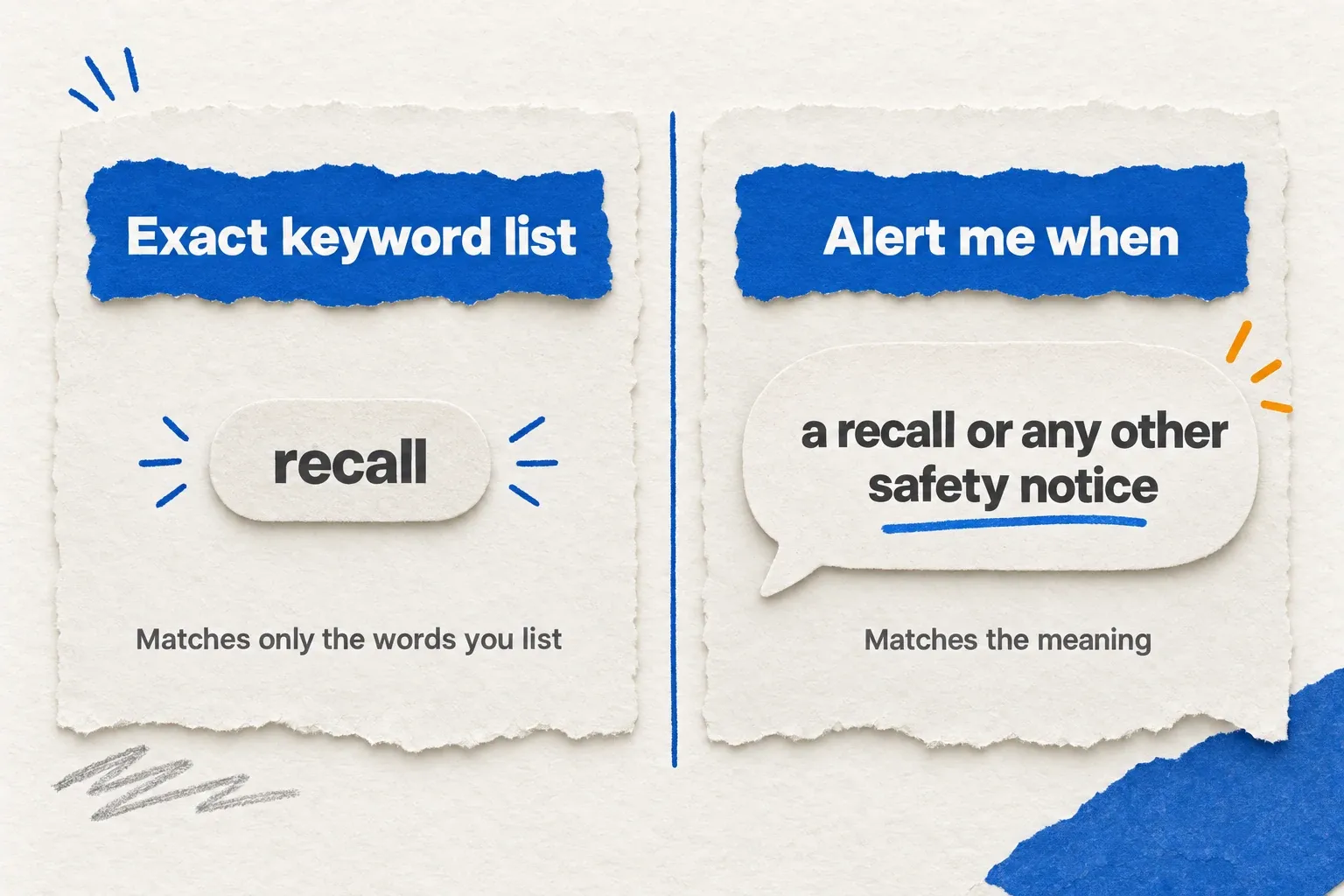
For most keyword monitoring, start with a condition. It works from meaning, so "a new role in data" can catch "Analytics Engineer" and "Data Platform Lead" without a list of every job title.
Reach for a keyword list when the word itself is the signal and a near miss is worse than silence: a model number, a docket number, a price point, a legal phrase. The list does exactly what it says, which makes it easy to audit.
A condition is a judgment by Visualping AI (see how Visualping AI filters noise), so read the first few alerts and tighten the wording if it flags too much or too little. A keyword list never guesses, which also means it misses any synonym you left off.
Regulated wording shows why. The FDA gives a recall, a market withdrawal and a medical device safety alert separate definitions, so notices about the same product can use different words. A list with only "recall" matches one of the three. A condition that asks for "a recall or any other safety notice" lets Visualping AI judge each notice by what it means.
| Your situation | Use |
|---|---|
| The idea matters more than the exact word | "Alert me when" condition |
| The exact string matters (part number, price, clause) | Keyword list |
| You need a regular expression | Keyword list |
Seven keyword monitoring use cases, with example conditions

1. Competitor pricing pages
Point the monitor at the pricing page. If the page also carries a long FAQ, draw the area around the plan table. For the keyword list below, switch to Text changes before you draw it, since the switch clears the area.
Condition: "Alert me when a plan price changes, a plan is added or removed, or a free trial is mentioned. Ignore the currency switcher and testimonials."
Keyword list: the current price, such as $49, set to deleted. When that price leaves the page, you hear about it.
2. Careers pages
If the careers page pulls its listings from a job board, monitor the job board page that shows the roles. Our guide to careers page job alerts covers the setup in detail.
Condition: "Alert me when a new job mentions data engineering, analytics or machine learning, in Toronto or remote."
Keyword list: data engineer, analytics, machine learning, set to added.
3. Restocks
Watch the product page for the exact variant you want, since a sold-out size and an in-stock colour can share one page. The back-in-stock alerts guide covers retailer quirks.
Condition: "Alert me when size 10 is back in stock."
Keyword list: sold out, set to deleted. When the words disappear, the item is usually back.
4. Partner and vendor directories
Condition: "Alert me when Acme Analytics is removed from this list or its description changes." (Swap in your company name.)
Keyword list: your company name, set to deleted, so you hear the day a partner drops your listing.
5. Government tenders and regulatory notices
If the portal lets you save a filtered search, monitor the results page with your filters applied.
Condition: "Alert me when a new tender or notice mentions website redesign, accessibility or WCAG."
Keyword list: website redesign, accessibility, WCAG, set to added.
6. News and press pages
Monitor one outlet's section page, a trade publication's news page or a competitor's newsroom, and watch it for your company or product name.
Condition: "Alert me when a new article or press release mentions [your company] or [your product]."
Keyword list: your company name and product names, set to added.
7. Your own pages
Some lines have to stay on your site: a legal disclaimer, a price, the label on a checkout button. Monitor the page and you hear about it when one is edited or dropped. Visualping checks on the schedule you set, so keep your uptime monitor for outages.
Condition: "Alert me when the legal disclaimer is removed or reworded."
Keyword list: a phrase from the disclaimer, set to deleted.
Keyword monitoring vs rank tracking and brand listening
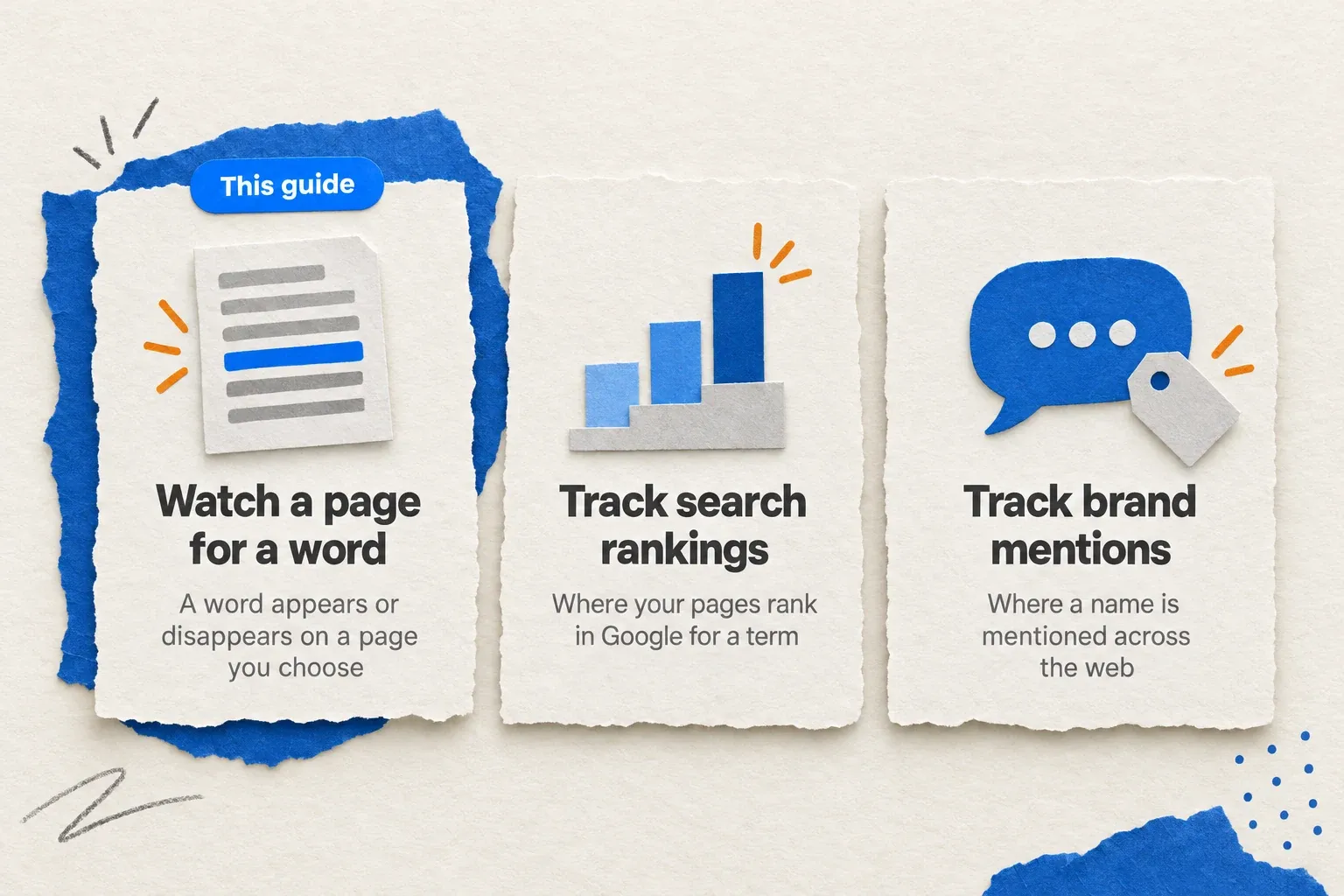
Search for "keyword monitoring" and you will find three different jobs under one name. On-page keyword monitoring, the subject of this guide, watches pages you choose for a word to appear or disappear.
Rank tracking measures where your own pages rank in Google for a search term. The Search Console Performance report shows this for your site at no cost, and our guide to tracking SEO changes covers the on-page side.
Brand listening collects mentions of a name anywhere on the web or social media. Google Alerts covers the open web for free, and our Google Alerts setup guide walks through it.
Visualping does the first job. It works best when you already know which pages matter: a regulator's notice page, a competitor's pricing table, a supplier's stock page, or a rate you watch like mortgage rates.
Keyword alert FAQ
What is keyword monitoring?
Keyword monitoring is a repeated check of a web page that alerts you when a chosen word, phrase or number appears on it or is removed from it. In Visualping you set it up with an "Alert me when" condition or an exact keyword list.
How do I set an alert for a website?
Add the page's URL to Visualping, write what should trigger an alert in the "Alert me when" field, and choose how often to check. Visualping then emails you when a change matches. The three steps at the top of this guide walk through each one.
How can I search for a keyword within a webpage?
For a one-time search, press Ctrl+F (Command+F on a Mac) and type the word. Your browser highlights every match on the page you have open. Keyword monitoring repeats that check on a schedule and tells you when the word appears or disappears.
Can Visualping alert me when a word is removed from a page?
Yes. Write a condition such as "Alert me when 'sold out' disappears", or set a Text changes keyword list to alert on deleted keywords.
Does keyword monitoring work on the Free plan?
Yes, with an "Alert me when" condition. AI Mode and conditions are on every plan, including Free, which covers 5 pages and 150 checks a month.
What does a keyword alert show?
Every alert carries a Visualping AI summary of what changed and an Important or not-important verdict. If you send alerts to a webhook, the payload also carries the added and removed text.
Will other edits on the page send alerts too?
With a keyword list, only a keyword match sends an alert, however much else on the page changes. With a condition, Visualping AI checks each detected change against your sentence and alerts only on the ones that match. That holds while the "only important alerts" filter stays on, which it is by default.
Can each page have its own keywords?
Yes. Each monitor watches one page and keeps its own condition or keyword list, so your pricing page and your careers page can watch for different words.
Is there a history of past changes?
Each monitor keeps a history of the changes it detected, with timestamped screenshots, for 3 months on every plan. Business plans can extend that to 1 year per monitor.
Is keyword matching case sensitive?
No. A keyword list ignores case, so "Recall" and "recall" match the same text. A condition is read by Visualping AI for meaning, so capital letters make no difference there either.
How many keywords can one monitor watch?
A Text changes keyword list takes up to 200 keywords and 20,000 characters. An "Alert me when" condition takes up to 16,000 characters, enough to name many terms in plain language.
Will I get an alert if the keyword is already on the page?
A keyword list alerts on change: when a listed word is added or deleted. A word that sits on the page unchanged does not trigger it. A condition works the same way, because Visualping AI reads only the changes it detects. If the word is already there when you start, set the list to deleted, or write a condition such as "Alert me when 'sold out' disappears".
Does keyword monitoring work on pages built with JavaScript?
Yes. Visualping opens each page in a headless browser, which captures pages rendered with JavaScript.
Can I monitor a PDF for keywords?
Yes. Paste the PDF's URL as you would a web page. Visualping reads the text of the first 100 pages, so a keyword that appears only after page 100 is not checked.
Can I watch many pages for the same keyword at once?
Yes, on every plan, with bulk URL monitoring. Click Start monitoring, open the Bulk tab and paste your URLs, one per line. The settings you choose in the creator apply to every URL, up to your plan's page limit (5 on Free). Bulk monitors cover the full page and check no more often than every 15 minutes.
How often does Visualping check the page?
As often as every 2 minutes on the Personal plan at $50 a month, billed yearly, and on Business plans. The Free plan checks as often as every 60 minutes, and every plan can check as rarely as once a month. Each check uses one of your plan's monthly checks.
Is keyword monitoring the same as keyword rank tracking?
They are different jobs. Rank tracking reports where a page ranks in search results for a term. Keyword monitoring in Visualping watches what a specific page says and alerts you when a word appears or disappears.
Want to monitor web changes that impact your business?
Sign up with Visualping to get alerted of important updates, from anywhere online.
Anika Gupta
Anika Gupta is a former Marketing Intern who wrote about competitive intelligence and marketing strategy for the Visualping blog.
More articles by Anika Gupta