Get website change alerts in Slack
Visualping watches the web pages that matter to your team and posts an alert in Slack when one of them changes. Send each monitor to the right channel, public or private, and see what changed without leaving Slack.
No credit card required. Start the trial with your work email.
Slack alerts are included in every Visualping Business plan. Compare plans
Trusted by 85% of the Fortune 500.
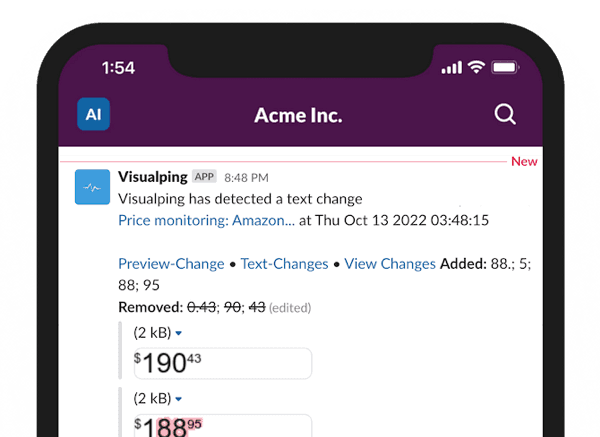
How Visualping and Slack work together
Pick a page to watch.
Add a public web page as a monitor: a competitor's pricing page, a regulator's updates page, a vendor's terms, or your own site.
Tell Visualping what matters.
Watch the whole page or crop to one area, ignore sections that change all the time, and describe the kind of change you care about in your own words.
Visualping checks the page on your schedule.
Business plans can check as often as every 2 minutes.
Your Slack channel gets the alert.
The alert shows the text that was added and removed and links to the full change in Visualping, where you can compare the before and after.
What you can do with Visualping in Slack
Route every monitor to the right channel
Slack channels are chosen per monitor, so pricing changes can go to #competitive-intel, policy updates to #legal, and site changes to #web-team. One monitor can post to more than one channel.
Send alerts to private channels
Keep sensitive monitoring in private channels. An Admin authorizes private channels once. After that, any private channel that has the Visualping app and that you belong to appears in the channel list with a lock icon.
Cut the noise
Visualping AI summarizes every change and flags whether it is important. Mute the changes it classifies as unimportant to keep the channel quiet.
Set it up at scale
Add Slack to many monitors at once with bulk editing, or save your notification settings as a preset for the monitors you create next.
Know when a monitor needs attention
If Visualping can't check a page, it sends an error alert to your notification channels, Slack included. Error alerts follow the monitor's error-alert settings and failure threshold.
Build custom workflows
Need a different message format or extra automation steps? Combine Visualping webhooks with Slack Workflow Builder.
Popular ways teams use Slack alerts
Competitive intelligence
Competitor pricing, packaging, product, and careers pages, posted to a shared channel.
Regulatory and compliance
Legislation, agency guidance, sanctions lists, and vendor policy pages, routed to legal and risk channels.
Your own website
Catch unapproved edits, unexpected content changes, or SEO changes, and alert the web team.
Sales and partner signals
News, leadership, and announcement pages for target accounts and partners.
Visualping detects content changes on web pages. It is not an uptime or downtime monitor.
How to set up the Slack integration
Connect Slack (Admins, one time).
In Visualping, go to Account > Integrations, find Slack, and click Connect.
Allow access.
Review the permissions in the Slack window that opens and click Allow.
Add Visualping to your channel.
In Slack, open the channel and invite the app, for example by typing /invite @Visualping. Visualping can only post in channels it has been added to.
Choose channels for a monitor.
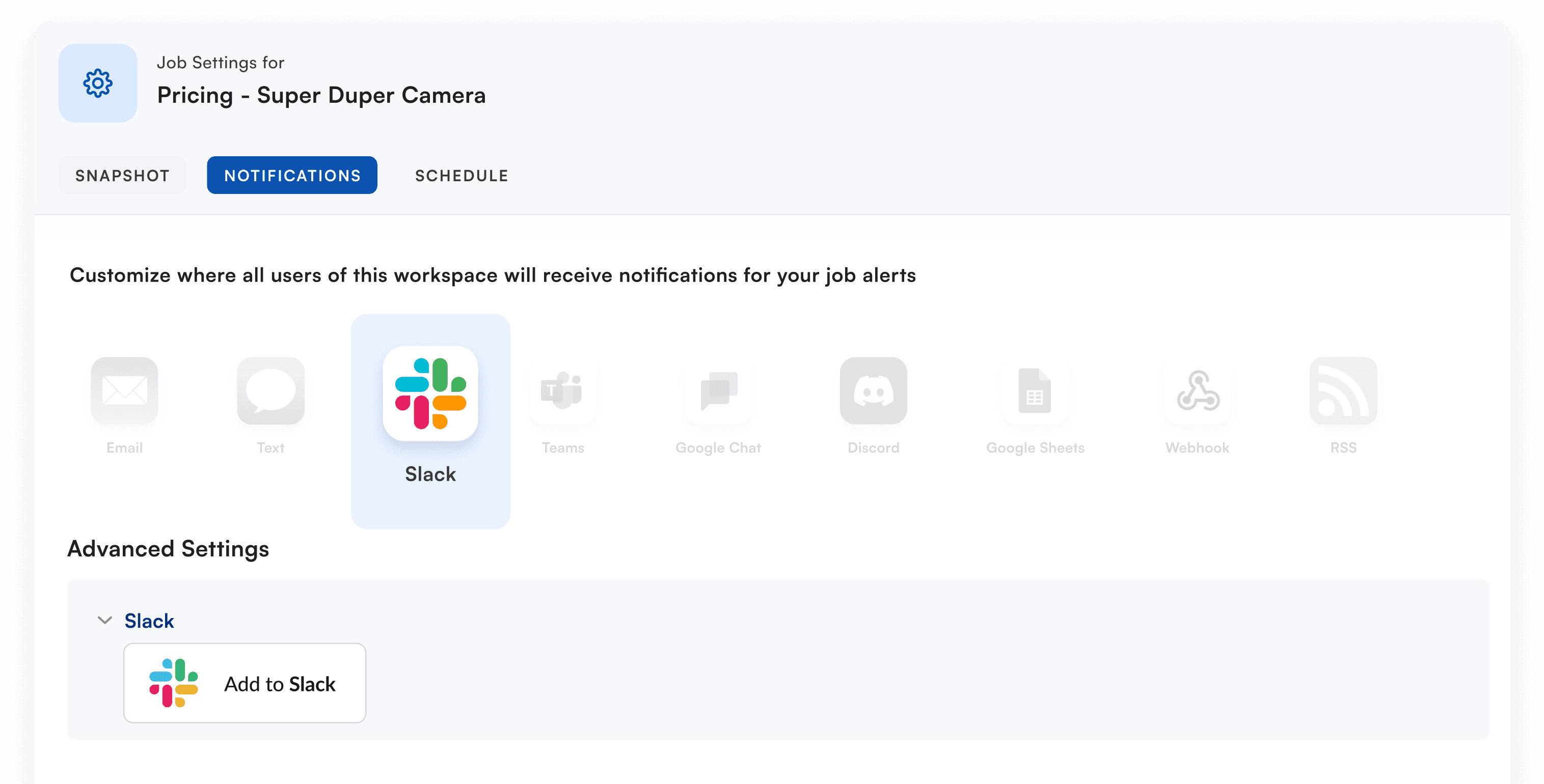
Open the monitor's settings, go to Notifications, turn on Slack, and pick one or more channels. Editors and Admins can do this.
Test and save.
Click Test to post a sample alert to the channel, then click Save.
Full setup guidePrivate channels guideVisualping in the Slack Marketplace
Frequently asked questions
Which Visualping plans include Slack alerts?
Can I send alerts to private Slack channels?
Can different monitors post to different channels?
Who can connect Slack to Visualping?
What permissions does the Visualping Slack app ask for?
I'm not receiving Slack alerts. What should I check?
I still use the old Slack webhook option. Do I need to switch?
Start getting website change alerts in Slack
Create your account, start a free 14-day Business trial, and connect Slack. No credit card required.
Other places to send alerts
- Google Chat
- All integrations
- Microsoft Teams
- Google Sheets
- Webhooks